
5. macOS で Python を使う
このドキュメントでは、Mac コンピュータで Python を使い始める際に知っておくべき、macOS 固有の挙動を概説します。 macOS を実行する Mac 上の Python は、ほかの Unix 派生プラットフォーム上の Python と非常によく似ていますが、インストール方法や一部の機能には違いがあります。
macOS 用の Python を入手してインストールする方法はいくつかあります。 最近の Python のバージョンは、複数の配布元からビルド済みのものを入手できます。 このドキュメントの大部分では、CPython リリースチームが python.org のウェブサイト でダウンロード用に提供している Python の使い方を説明します。 ほかの選択肢については Alternative Distributions を参照してください。
5.1. python.org の macOS 用 Python を使う
5.1.1. インストール手順
For current Python versions
(other than those in security status), the release team produces a
Python for macOS installer package for each new release.
A list of available installers
is available here.
We recommend using the most recent supported Python version where possible.
Current installers provide a
universal2 binary build
of Python which runs natively on all Macs (Apple Silicon and Intel) that are
supported by a wide range of macOS versions,
currently typically from at least macOS 10.15 Catalina on.
The downloaded file is a standard macOS installer package file (.pkg).
File integrity information (checksum, size, sigstore signature, etc) for each file is included
on the release download page. Installer packages and their contents are signed and notarized
with Python Software Foundation Apple Developer ID certificates
to meet macOS Gatekeeper requirements.
For a default installation, double-click on the downloaded installer package file. This should launch the standard macOS Installer app and display the first of several installer windows steps.
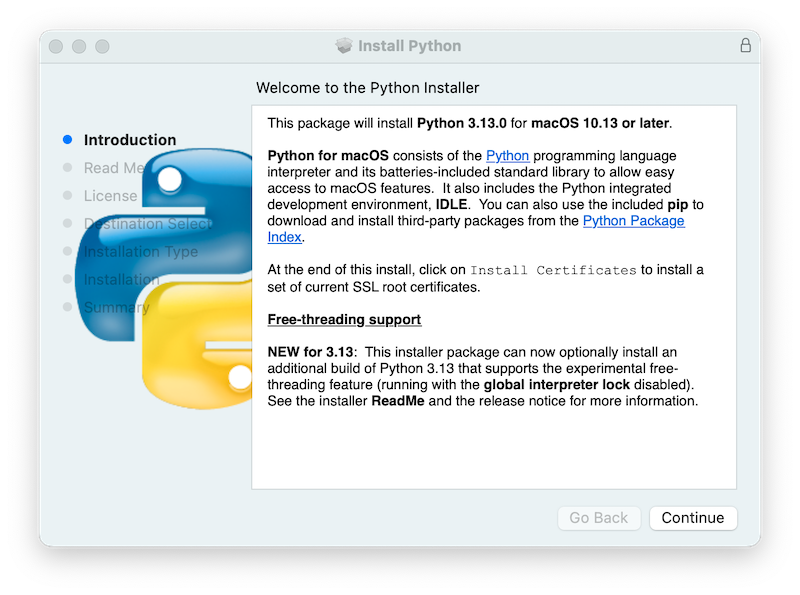
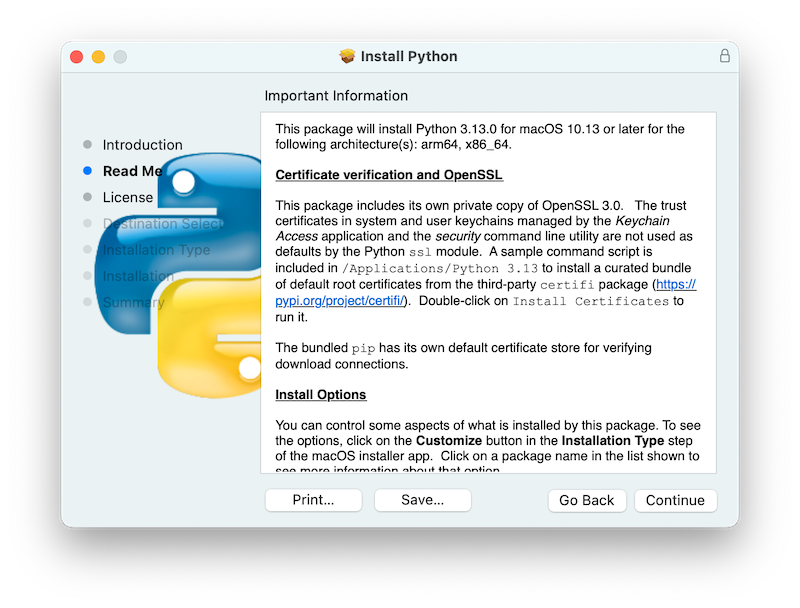
Continue ボタンをクリックすると、このインストーラの Read Me が表示されます。
Read Me には、インストールする Python のバージョンと、そのバージョンがサポートする macOS のバージョンなど、重要な情報が記載されています。
ファイル全体を読むには、スクロールが必要な場合があります。
デフォルトでは、この Read Me も /Applications/Python 3.14/ にインストールされ、いつでも読めるようになります。
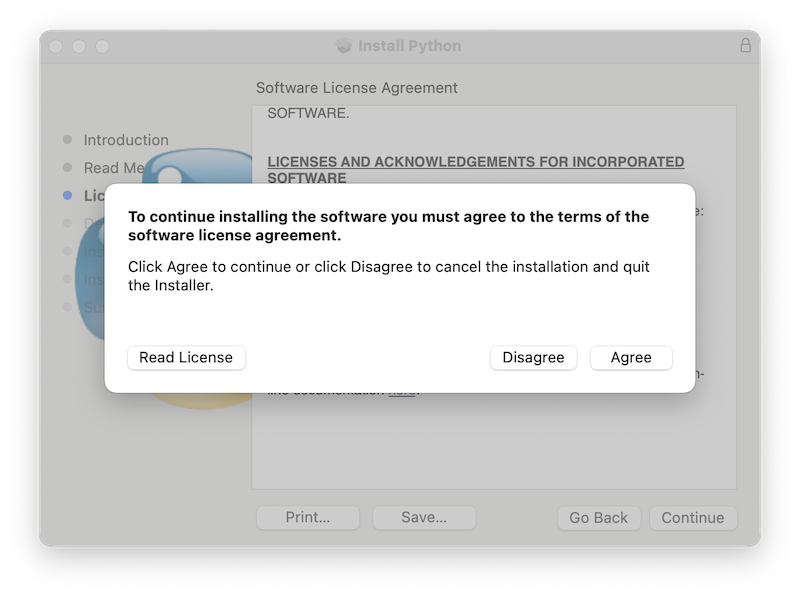
Continue をクリックすると、Python および同梱されるほかのソフトウェアのライセンスが表示されます。 次の手順に進むには、ライセンス条項に Agree で同意する必要があります。 このライセンスファイルもインストールされ、後で読むことができます。
ライセンス条項に同意すると、次に Installation Type 画面が表示されます。 ほとんどの用途では、標準のインストール内容が適切です。
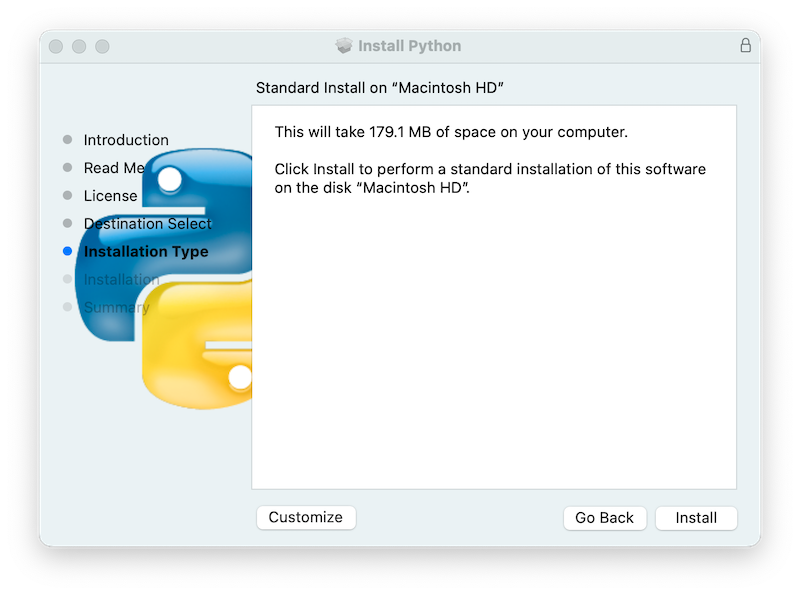
By pressing the Customize button, you can choose to omit or select certain package components of the installer. Click on each package name to see a description of what it installs. To also install support for the optional free-threaded feature, see Installing Free-threaded Binaries.
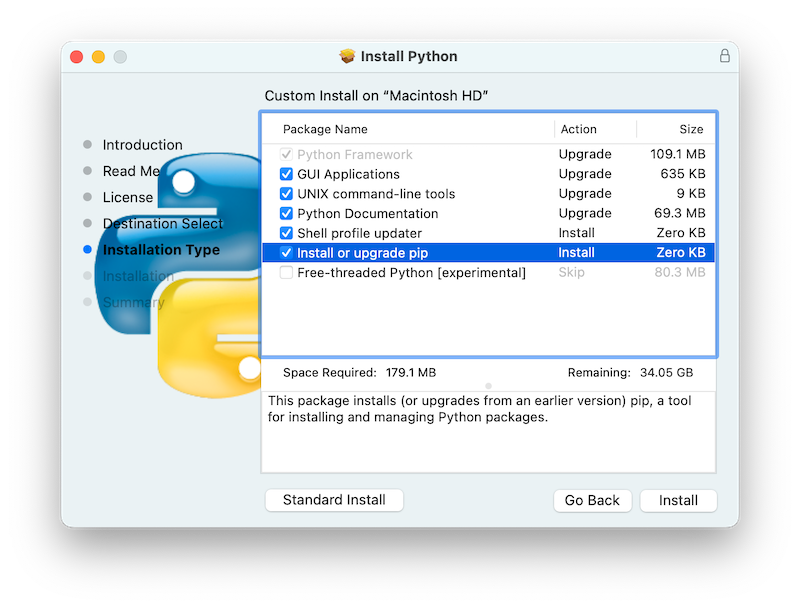
どちらの場合も、Install をクリックすると、新しいソフトウェアをインストールするための許可を求めてインストール処理が始まります。
インストールした Python はその Mac のすべてのユーザーが利用できるため、Administrator 権限のある macOS ユーザー名が必要です。
インストールが完了すると、Summary ウィンドウが表示されます。
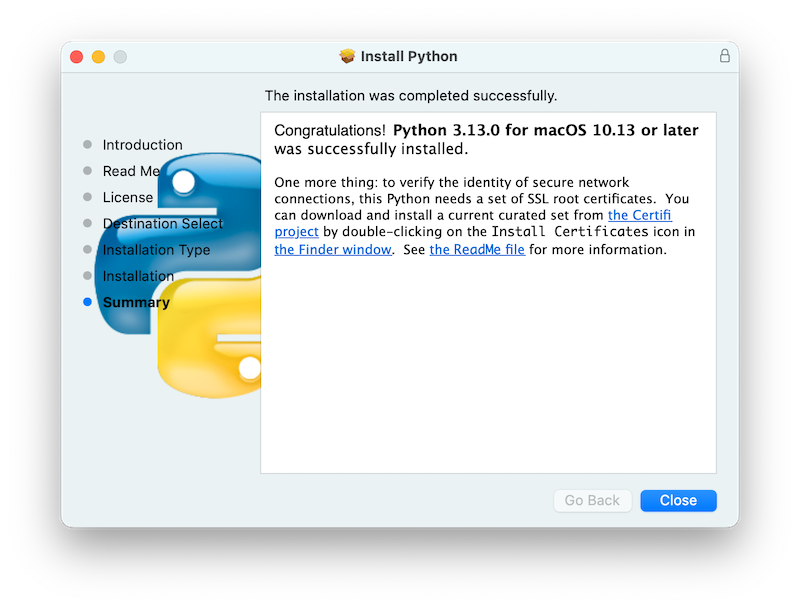
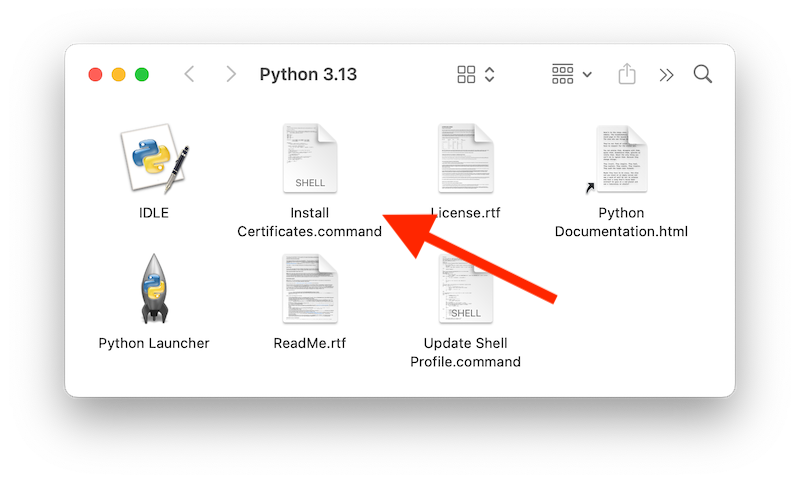
/Applications/Python 3.14/ ウィンドウで Install Certificates.command のアイコンまたはファイルをダブルクリックして、インストールを完了します。
一時的な Terminal シェルウィンドウが開き、新しい Python を使って、その Python 用の SSL ルート証明書をダウンロードしてインストールします。
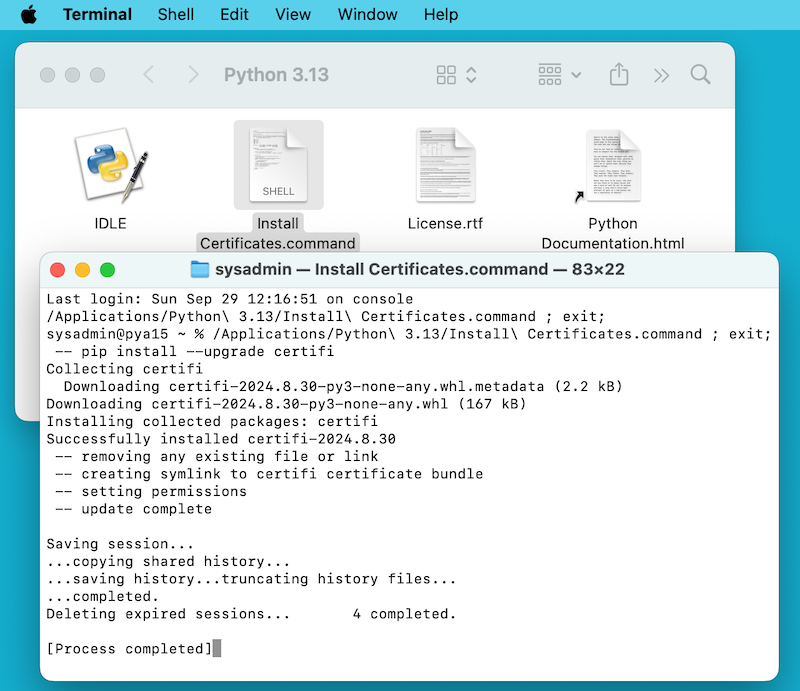
If Successfully installed certifi and update complete appears
in the terminal window, the installation is complete.
Close this terminal window and the installer window.
デフォルトのインストールには、次のものが含まれます:
Applicationsフォルダ内のPython 3.14フォルダ。 このフォルダには、公式の Python 配布物に標準で含まれる開発環境 IDLE と、macOS の Finder で Python スクリプトをダブルクリックしたときの処理を担う Python Launcher があります。A framework
/Library/Frameworks/Python.framework, which includes the Python executable and libraries. The installer adds this location to your shell path. To uninstall Python, you can remove these three things. Symlinks to the Python executable are placed in/usr/local/bin/.
注釈
最近の macOS には、/usr/bin/python3 に python3 コマンドが含まれています。
これは、Apple の開発ツールである Xcode または Command Line Tools for Xcode によって、それらのツールで使用するために提供される Python にリンクしており、通常は古く、不完全なバージョンです。
この Python は Apple が管理し、Apple 製やサードパーティのソフトウェアが使用するため、決して変更したり、削除しようとしたりしないでください。
python.org から新しいバージョンの Python をインストールすると、コンピュータには異なる 2 つの Python 環境が存在することになりますが、両方とも動作し、共存できます。
インストーラのデフォルトのオプションでは、システムの python3 に代わって、インストールした python3 が使用されるはずです。
5.1.2. Python スクリプトの実行方法
Python インタープリタを起動するには 2 つの方法があります。
ターミナルウィンドウで Unix シェルを使い慣れている場合は、python3.14 または python3 を実行できます。
必要に応じて、1 つ以上のコマンドラインオプション (コマンドラインと環境 で説明) をその後に指定できます。
Python チュートリアルの シェルから Python を対話的に使用する 節も参考になります。
統合開発環境からインタープリタを起動することもできます。 IDLE --- Python のエディタとシェル は、Python の標準配布物に含まれる基本的なエディタとインタープリタの環境です。 IDLE の Help メニューから Python のドキュメントを参照できます。 Python を初めて使う場合は、そのドキュメントにあるチュートリアルの導入部分を読むとよいでしょう。
ほかにも多くのエディタや IDE を利用できます。 詳細は エディタと IDE を参照してください。
ターミナルウィンドウから Python スクリプトファイルを実行するには、スクリプトファイル名を指定してインタープリタを起動します:
python3.14myscript.py
Finder からスクリプトを実行するには、次のいずれかの方法を使います:
スクリプトを Python Launcher にドラッグします。
Finder の情報ウィンドウで、スクリプト (または任意の
.pyスクリプト) を開くデフォルトのアプリケーションとして Python Launcher を選択し、スクリプトをダブルクリックします。 Python Launcher には、スクリプトの起動方法を制御するさまざまな環境設定があります。 Option キーを押しながらドラッグすると、今回の起動に限って設定を変更できます。 全体の設定を変更するには、Preferencesメニューを使います。
macOS の Finder から直接スクリプトを実行すると、ターミナルウィンドウから実行した場合と結果が異なることがあります。 シェルのプロファイルでの環境変数の設定など、通常のシェル環境でスクリプトが実行されるわけではないためです。 また、ほかのスクリプトやプログラムを実行するときと同様に、何を実行しようとしているかを確認してください。
5.2. Alternative Distributions
macOS 用の標準の python.org インストーラに加えて、追加の機能を含む場合があるサードパーティの macOS 用配布物もあります。
よく使われる配布物とその主な特徴を紹介します:
- ActivePython
複数のプラットフォームに対応するインストーラ、ドキュメント
- Anaconda
よく使われる科学計算モジュール (numpy、scipy、pandas など) と
condaパッケージマネージャ。- Homebrew
複数バージョンの Python と、Python に基づく多くのサードパーティパッケージ (numpy、scipy、pandas など) を含む macOS 用パッケージマネージャ。
- MacPorts
複数バージョンの Python と、Python に基づく多くのサードパーティパッケージを含む、もう一つの macOS 用パッケージマネージャ。 古い macOS バージョン用にビルドされた Python や多くのパッケージを含む場合があります。
これらの配布物には最新バージョンの Python やほかのライブラリが含まれていないことがあり、Python のコアチームによる保守やサポートも行われていない点に注意してください。
5.3. Installing Additional Python Packages
詳細は Python Packaging User Guide を参照してください。
5.4. GUI Programming
Python で Mac 上の GUI アプリケーションをビルドする方法がいくつかあります。
Python の標準 GUI ツールキットは、複数のプラットフォームに対応する Tk ツールキット (https://www.tcl.tk) を基にした tkinter です。
インストーラには、macOS でネイティブに動作するバージョンの Tk が含まれています。
PyObjC は、Apple の Objective-C/Cocoa フレームワークの Python バインディングです。 PyObjC についての情報は pyobjc を参照してください。
macOS 用の GUI ツールキットには、次のようなほかの選択肢もあります:
PySide: Qt GUI ツールキット の公式 Python バインディング。
PyQt: Qt 用の別の Python バインディング。
Kivy: デスクトップとモバイルのプラットフォームに対応する GUI ツールキット。
Toga: BeeWare Project の一部で、デスクトップ、モバイル、ウェブ、コンソールのアプリに対応します。
wxPython: 複数のデスクトップ OS に対応するツールキット。
Flet: A framework for building cross-platform desktop, mobile, and web applications in Python.
5.5. Advanced Topics
5.5.1. Installing Free-threaded Binaries
Added in version 3.13.
The python.org Python for macOS
installer package can optionally install an additional build of
Python 3.14 that supports PEP 703, the free-threading feature
(running with the global interpreter lock disabled).
Check the release page on python.org for possible updated information.
The free-threaded mode is working and continues to be improved, but there is some additional overhead in single-threaded workloads compared to the regular build. Additionally, third-party packages, in particular ones with an extension module, may not be ready for use in a free-threaded build, and will re-enable the GIL. Therefore, the support for free-threading is not installed by default. It is packaged as a separate install option, available by clicking the Customize button on the Installation Type step of the installer as described above.
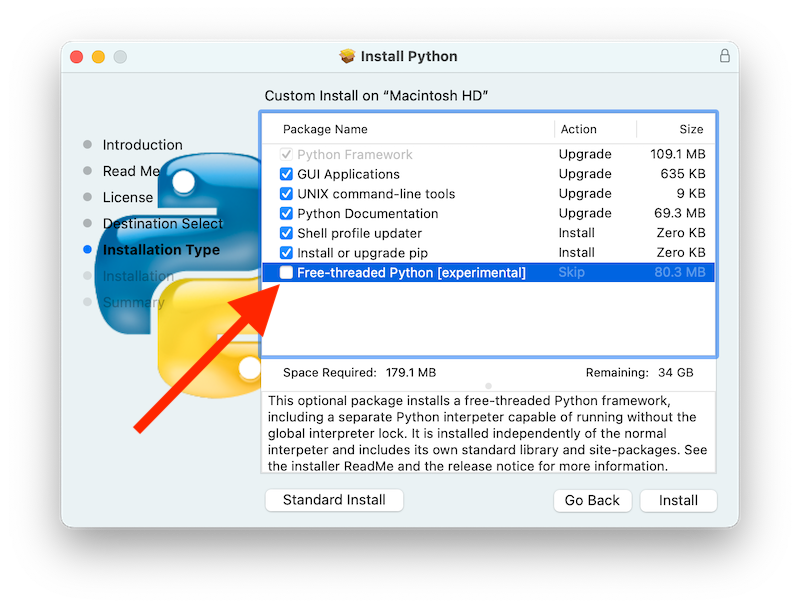
If the box next to the Free-threaded Python package name is checked,
a separate PythonT.framework will also be installed
alongside the normal Python.framework in /Library/Frameworks.
This configuration allows a free-threaded Python 3.14 build to co-exist
on your system with a traditional (GIL only) Python 3.14 build with
minimal risk while installing or testing. This installation layout may
change in future releases.
既知の注意点と制限:
The UNIX command-line tools package, which is selected by default, will install links in
/usr/local/binforpython3.14t, the free-threaded interpreter, andpython3.14t-config, a configuration utility which may be useful for package builders. Since/usr/local/binis typically included in your shellPATH, in most cases no changes to yourPATHenvironment variables should be needed to usepython3.14t.このリリースでは、Shell profile updater パッケージと、
/Applications/Python 3.14/にあるUpdate Shell Profile.commandは、フリースレッドパッケージに対応していません。フリースレッドビルドと従来のビルドでは、検索パスと
site-packagesディレクトリがそれぞれ別になっています。 そのため、デフォルトでは、両方のビルドでパッケージを使いたい場合は、両方にインストールする必要があるかもしれません。 フリースレッドパッケージは、python3.14t用に別の pip をインストールします。venv を使わずに pip でパッケージをインストールするには、次のようにします:
python3.14t -m pip install <package_name>
複数の Python 環境を使用する場合は、通常、仮想環境を作成して使用する のが最も安全で簡単です。 これにより、コマンド名が衝突したり、どの Python を使用しているか分からなくなったりするのを避けられます:
python3.14t -m venv <venv_name>
続いて activate を実行します。
フリースレッド版の IDLE を実行するには、次のようにします:
python3.14t -m idlelib
どちらのビルドのインタープリタも同じ PYTHON 環境変数 を参照するため、例えばシェルのプロファイルで
PYTHONPATHを設定していると、予期しない結果になる場合があります。 必要に応じて、-Eのような コマンドラインオプション を使い、これらの環境変数を無視できます。フリースレッドビルドは、従来のフレームワークにインストールされた
OpenSSLやTkなどのサードパーティの共有ライブラリにリンクします。 そのため、両方のビルドは Install Certificates.command スクリプトでインストールした信頼証明書も共有するので、このスクリプトは一度実行するだけで済みます。/usr/local/bin内のリンクがpython.orgのフリースレッド版python3.14tを指すとは限らない場合 (例えば、その場所に自分のバージョンをインストールしたい場合や、ほかの配布物がインストールする場合)、シェルのPATH環境変数にPythonTフレームワークのbinディレクトリを明示的に追加できます:export PATH="/Library/Frameworks/PythonT.framework/Versions/3.14/bin":"$PATH"
従来のフレームワークのインストールでも、対象が
Python.frameworkである以外は、デフォルトで同様の処理を行います。 両方のフレームワークのbinディレクトリをPATHに含めると、両方にpython3.14のような同名のコマンドがある場合に混乱を招くことがあります。 実際にどちらが使われるかは、PATH内での順序によって決まります。which python3.xまたはwhich python3.xtコマンドで、どのパスが使われるか確認できます。 仮想環境を使うと、このような曖昧さを避けるのに役立ちます。 目的のインタープリタに対して、次のようにシェルの alias を作成する方法も考えられます:alias py3.14="/Library/Frameworks/Python.framework/Versions/3.14/bin/python3.14" alias py3.14t="/Library/Frameworks/PythonT.framework/Versions/3.14/bin/python3.14t"
5.5.2. コマンドラインからのインストール
If you want to use automation to install the python.org installer package
(rather than by using the familiar macOS Installer GUI app),
the macOS command line installer utility lets you select non-default
options, too. If you are not familiar with installer, it can be
somewhat cryptic (see man installer for more information).
As an example, the following shell snippet shows one way to do it,
using the 3.14.0b2 release and selecting the free-threaded interpreter
option:
RELEASE="python-3.14.0b2-macos11.pkg"

# download installer pkg
curl -O https://www.python.org/ftp/python/3.14.0/${RELEASE}

# create installer choicechanges to customize the install:
#    enable the PythonTFramework-3.14 package
#    while accepting the other defaults (install all other packages)
cat > ./choicechanges.plist <<EOF
<?xml version="1.0" encoding="UTF-8"?>
<!DOCTYPE plist PUBLIC "-//Apple//DTD PLIST 1.0//EN" "http://www.apple.com/DTDs/PropertyList-1.0.dtd">
<plist version="1.0">
<array>
        <dict>
                <key>attributeSetting</key>
                <integer>1</integer>
                <key>choiceAttribute</key>
                <string>selected</string>
                <key>choiceIdentifier</key>
                <string>org.python.Python.PythonTFramework-3.14</string>
        </dict>
</array>
</plist>
EOF

sudo installer -pkg ./${RELEASE} -applyChoiceChangesXML ./choicechanges.plist -target /
You can then test that both installer builds are now available with something like:
$ # test that the free-threaded interpreter was installed if the Unix Command Tools package was enabled
$ /usr/local/bin/python3.14t -VV
Python 3.14.0b2 free-threading build (v3.14.0b2:3a83b172af, Jun  5 2024, 12:57:31) [Clang 15.0.0 (clang-1500.3.9.4)]
$ #    and the traditional interpreter
$ /usr/local/bin/python3.14 -VV
Python 3.14.0b2 (v3.14.0b2:3a83b172af, Jun  5 2024, 12:50:24) [Clang 15.0.0 (clang-1500.3.9.4)]
$ # test that they are also available without the prefix if /usr/local/bin is on $PATH
$ python3.14t -VV
Python 3.14.0b2 free-threading build (v3.14.0b2:3a83b172af, Jun  5 2024, 12:57:31) [Clang 15.0.0 (clang-1500.3.9.4)]
$ python3.14 -VV
Python 3.14.0b2 (v3.14.0b2:3a83b172af, Jun  5 2024, 12:50:24) [Clang 15.0.0 (clang-1500.3.9.4)]
注釈
現在の python.org インストーラは、/Library/Frameworks/、/Applications、/usr/local/bin などの決められた場所にのみインストールします。
installer の -domain オプションを使って、ほかの場所にインストールすることはできません。
5.5.3. Distributing Python Applications
Python コードをスタンドアローンな配布アプリケーションに変換するツールには様々なものがあります:
py2app: Python プロジェクトから macOS の
.appバンドルを作成できます。Briefcase: BeeWare Project の一部で、複数のプラットフォームに対応するパッケージングツールです。 macOS 上での
.appバンドルの作成や、署名と公証の管理に対応します。PyInstaller: 複数のプラットフォームに対応するパッケージングツールで、配布物として単一のファイルまたはフォルダを作成します。
5.5.4. App Store Compliance
macOS App Store を通じて配布するために提出するアプリは、Apple のアプリ審査に合格する必要があります。 この審査には、提出されたアプリケーションバンドル内に問題のあるコードがないかを調べる、一連の自動検証ルールが含まれています。
Python 標準ライブラリには、これらの自動ルールに違反することが分かっているコードが含まれています。 これらの違反は誤検出と思われますが、Apple の審査ルールに異議を唱えることはできません。 そのため、アプリが App Store の審査に合格するには、Python 標準ライブラリを変更する必要があります。
Python ソースツリーには、App Store の審査で問題を引き起こすことが分かっているコードをすべて削除する パッチファイル が含まれています。
このパッチは、CPython の configure に --with-app-store-compliance オプションを指定した場合に自動で適用されます。
Mac 上で CPython を使用するために、通常このパッチは必要ありません。 macOS App Store の 外 でアプリを配布する場合にも必要ありません。 このパッチが必要になるのは、macOS App Store を配布経路として使用する場合 だけ です。
5.6. Other Resources
python.org のヘルプページ には、多くの役立つリソースへのリンクがあります。 Pythonmac-SIG メーリングリスト も、Mac 上で Python を使うユーザーや開発者に特化したサポートリソースです。